> For the complete documentation index, see [llms.txt](https://docs.lan.kokomocloud.com/llms.txt). Markdown versions of documentation pages are available by appending `.md` to page URLs; this page is available as [Markdown](https://docs.lan.kokomocloud.com/configuring-networks/configuring-access-points/configuring-ssids/basic-settings/configuring-security.md).
# セキュリティ設定
## セキュリティタイプ
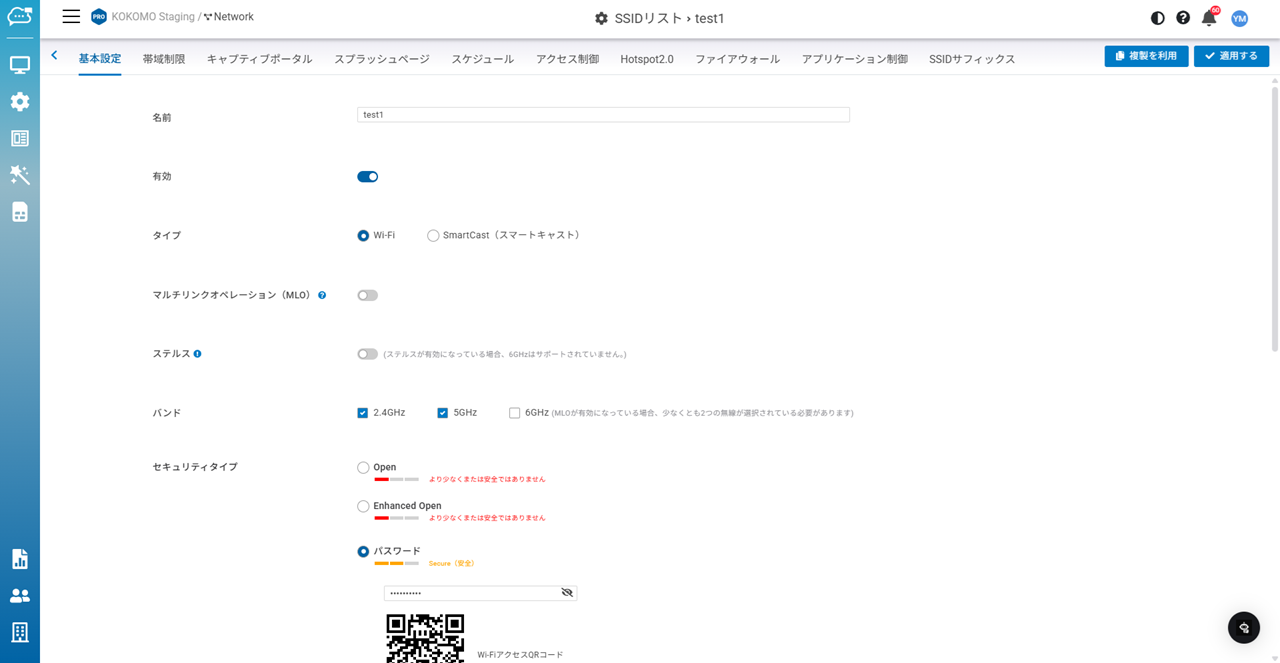
「**設定**」>「**アクセスポイント**」>「**SSID**」で任意のSSIDをクリックし、「**基本設定**」からこの画面にアクセスします。
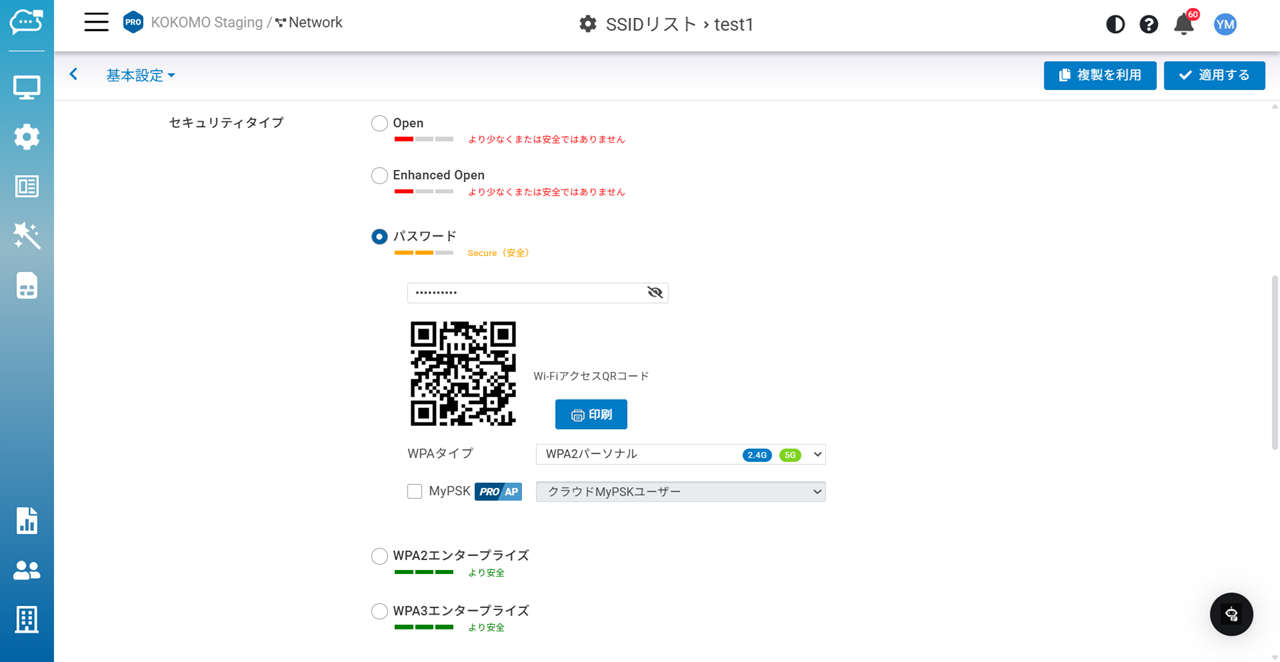
以下はこの画面に表示される認証タイプの説明です:
* **Open**:データ暗号化や認証が行われず、どのクライアントもネットワークに接続できます。
* **Enhanced Open**:公衆ホットスポット利用時に、認証なしで暗号化を提供するWi-Fi Enhanced Openによって、ユーザーの保護を強化します。
* **パスワード:**WPAタイプを以下から選択します。
* **WPA2パーソナル**:8~64文字の事前共有キー(大文字・小文字区別)を入力し、WPA2-PSKによるデータ暗号化を有効化します。MyPSKをチェックし、「**クラウドMyPSKユーザー**」を選択するとMyPSKユーザーに登録しているPSKを利用できます。詳細は「[**MyPSKの設定**](https://docs.lan.kokomocloud.com/kokomo-cloud/configuring-networks/configuring-access-points/mypsk)」を参照ください。
* **WPA3 パーソナル**:このタイプは、ユーザーが簡単に覚えられるパスワード選択を特徴としています。また、セキュリティのレベルが向上しており、ネットワーク内に保存されたデータやデータトラフィックは、パスワードがハッキングされたり、データがすでに送信されていたりしても侵害されることはありません。このアップグレードにより、WPA2パーソナルでの事前共有キー(PSK)に代わって、同等性同時認証(SAE)が可能になりました。
* **WPA3/WPA2パーソナル**:WPA2/WPA3混在モードでは、共通のSSIDでWPA2とWPA3クライアントが共存できます。WPA2とWPA3クライアントのパスフレーズは同じままで、アクセスポイントはクライアントが選択して使用できる異なる暗号化方式を通知するだけです。クライアントは、無線接続に使用する暗号化方式を選択します。
* **WPA2エンタープライズ**:802.1X認証を行うために、外部RADIUSサーバーを利用する場合は「**カスタムRADIUS**」を、KOKOMO Cloudを利用する場合は「**KOKOMO Cloud RADIUS**」を選択します。
* **WPA3エンタープライズ**:この方式は、政府、施設、企業、金融機関などのネットワーク全体で、より厳格で一貫したセキュリティプロトコルの適用を主な目的として開発されました。オプションで192ビットの最小セキュリティを提供することで、WPA3は暗号ツールを向上させます。これにより、機密データの保護が強化されます。
{% hint style="danger" %}
「**WPA2エンタープライズ**」および「**WPA3エンタープライズ**」のセキュリティタイプのうち「**Microsoft Entra ID**」は未サポートです。
{% endhint %}
{% hint style="danger" %}
「**WPA3/WPA2パーソナル**」のMyPSK機能は未サポートです。
{% endhint %}
{% hint style="info" %}
「**WPA2/WPAパーソナル**」の使用は推奨されません。
{% endhint %}
### WPA2/3エンタープライズの対応認証方式
「WPA2エンタープライズ」および「WPA3エンタープライズ」の対応認証方式を示します。
認証方式
802.1X認証 (EAP-PEAP)
802.1X認証 (EAP-TLS)
802.1X認証 (EAP-TTLS)
MAC認証
WEB認証
KOKOMO Cloud RADIUS
〇
✕
✕
✕
✕
カスタムRADIUS
〇
〇
〇
✕
✕
Google LDAP
✕
✕
〇
✕
✕
LDAPサーバー
✕
✕
〇
✕
✕
Active Directory
〇
✕
✕
✕
✕
{% hint style="warning" %}
キャプティブポータルを有効、かつ「**クリックスルー**」以外を選択している場合、「**WPA2エンタープライズ**」や「**WPA3エンタープライズ**」は選択できません。
{% endhint %}
## Wi-Fiアクセス用QRコード
このQRコードを使用すると、モバイルデバイスで特定のSSIDに接続できます。
{% hint style="info" %}
QRコードは株式会社デンソーウェーブの登録商標です。
{% endhint %}
---
# Agent Instructions
This documentation is published with GitBook. GitBook is the documentation platform designed so that both humans and AI agents can read, navigate, and reason over technical content effectively. Learn more at gitbook.com.
## Querying This Documentation
If you need additional information that is not directly available in this page, you can query the documentation by asking a question.
Perform an HTTP GET request on the following URL with the `ask` and `goal` query parameters:
```
GET https://docs.lan.kokomocloud.com/configuring-networks/configuring-access-points/configuring-ssids/basic-settings/configuring-security.md?ask=&goal=
```
`ask` is the immediate question: it should be specific, self-contained, and written in natural language.
`goal` is what the user is ultimately trying to achieve, the reason they need the answer. Sharing it helps GitBook give you a better, more relevant answer. A goal is most helpful when it describes the outcome the user wants rather than restating the question. For example, with `ask=how do I create an API token`, a goal like `automate deployments from our CI pipeline` lets GitBook tailor the answer to that use case.
The response will contain a direct answer to the question and relevant excerpts and sources from the documentation.
Use this mechanism when the answer is not explicitly present in the current page, you need clarification or additional context, or you want to retrieve related documentation sections.