> For the complete documentation index, see [llms.txt](https://docs.lan.kokomocloud.com/llms.txt). Markdown versions of documentation pages are available by appending `.md` to page URLs; this page is available as [Markdown](https://docs.lan.kokomocloud.com/mobile-app.md).
# モバイルアプリ
KOKOMOモバイルアプリは、KOKOMO Cloudのモバイルユーザーインターフェース(UI)です。外出先でもネットワークの状況を確認できます。24時間体制のネットワークサポートに最適なソリューションです。AndroidはGoogle Play、iOSはApp Storeからご利用いただけます。
## デバイスの追加
このセクションでは、KOKOMOモバイルアプリを使ってネットワーキングデバイスをネットワークに追加する方法を説明します。
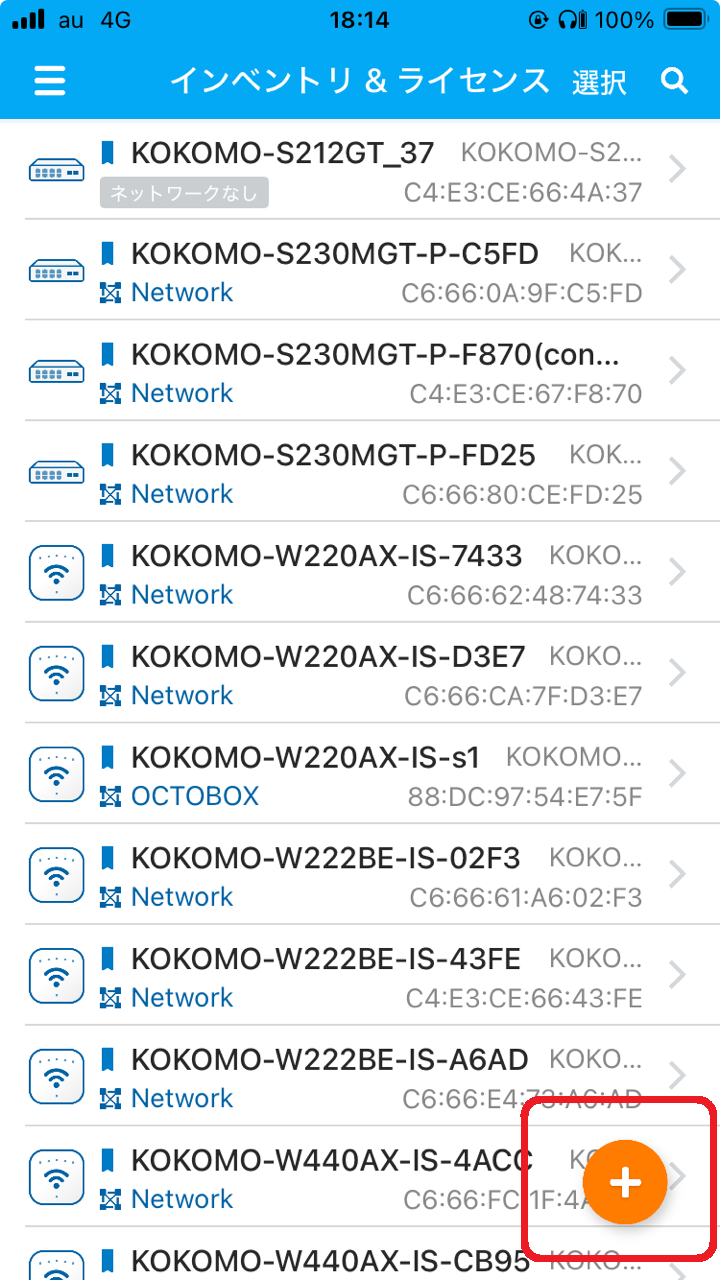
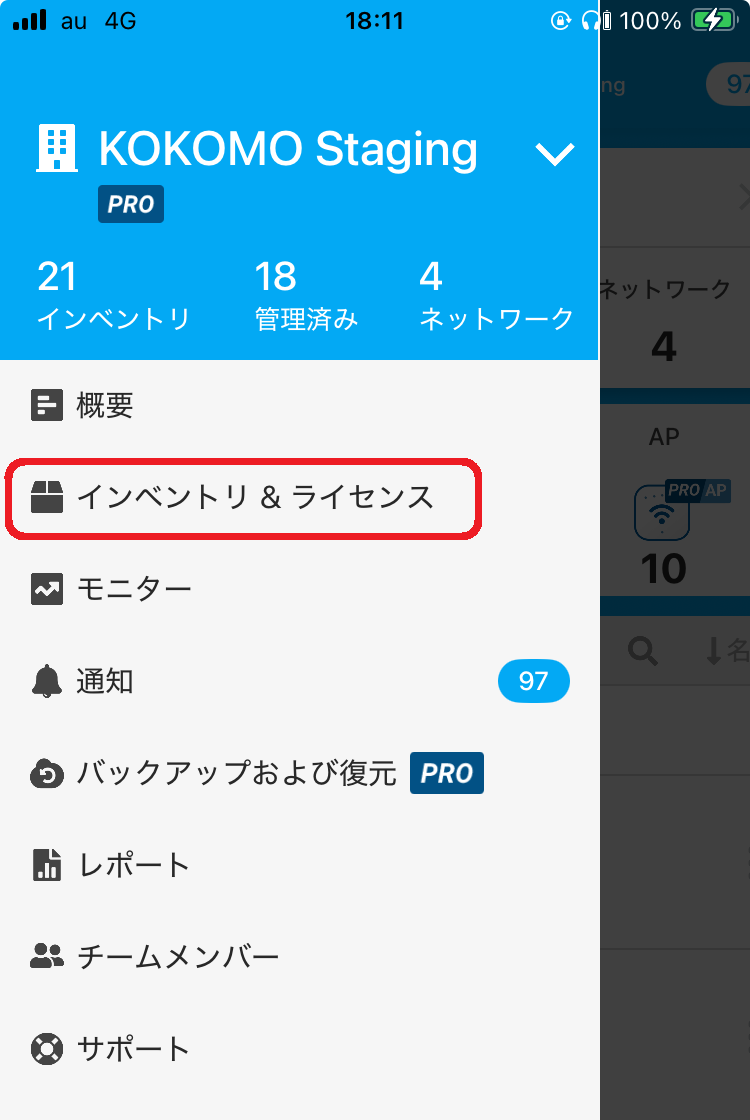
1. 「**インベントリ&ライセンス**」のタブに進み、画面右下の「」記号をタップします。
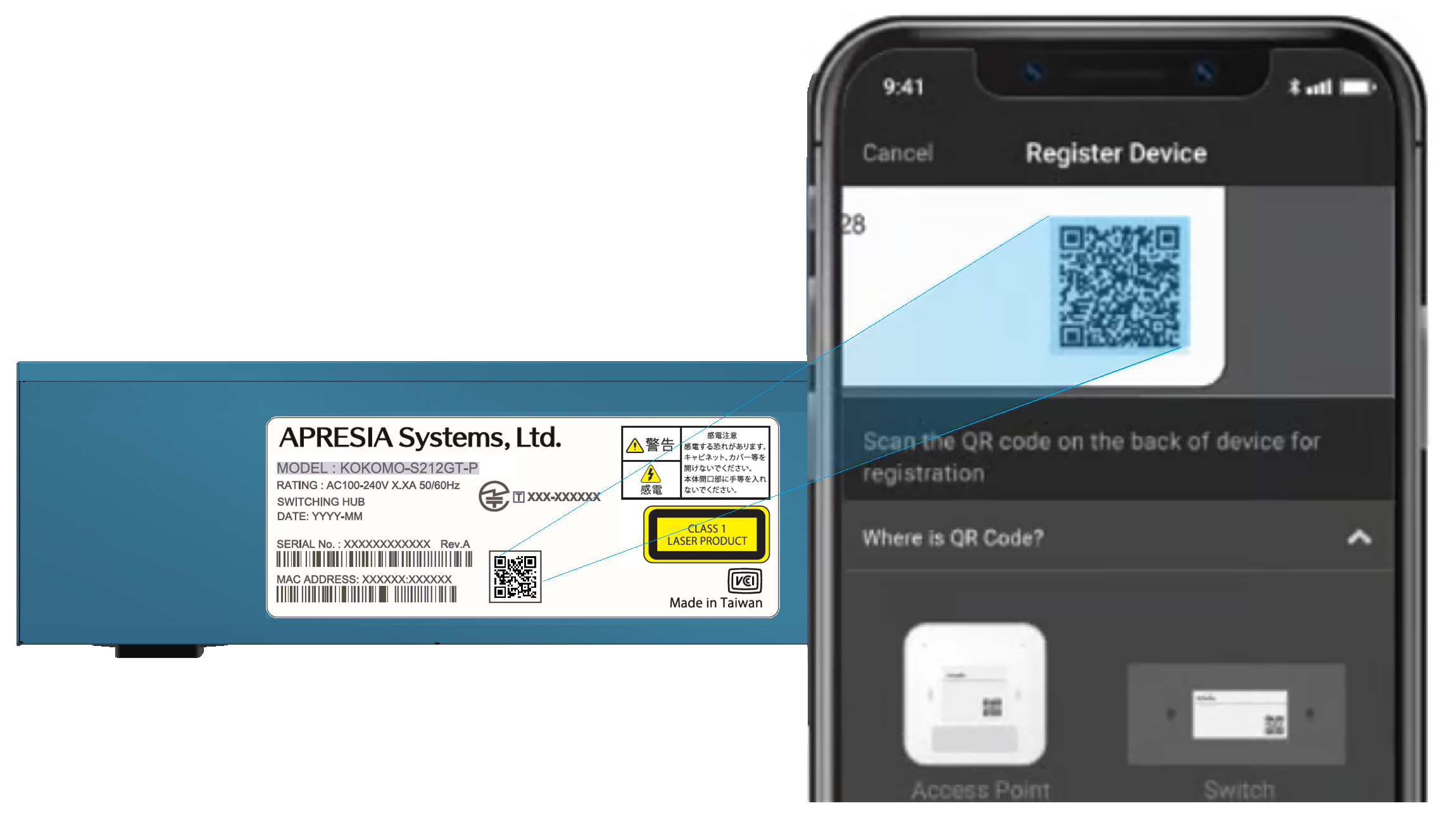
2. デバイス底面にあるQRコードを見つけてスキャンします。
{% hint style="info" %}
QRコードは株式会社デンソーウェーブの登録商標です。
{% endhint %}
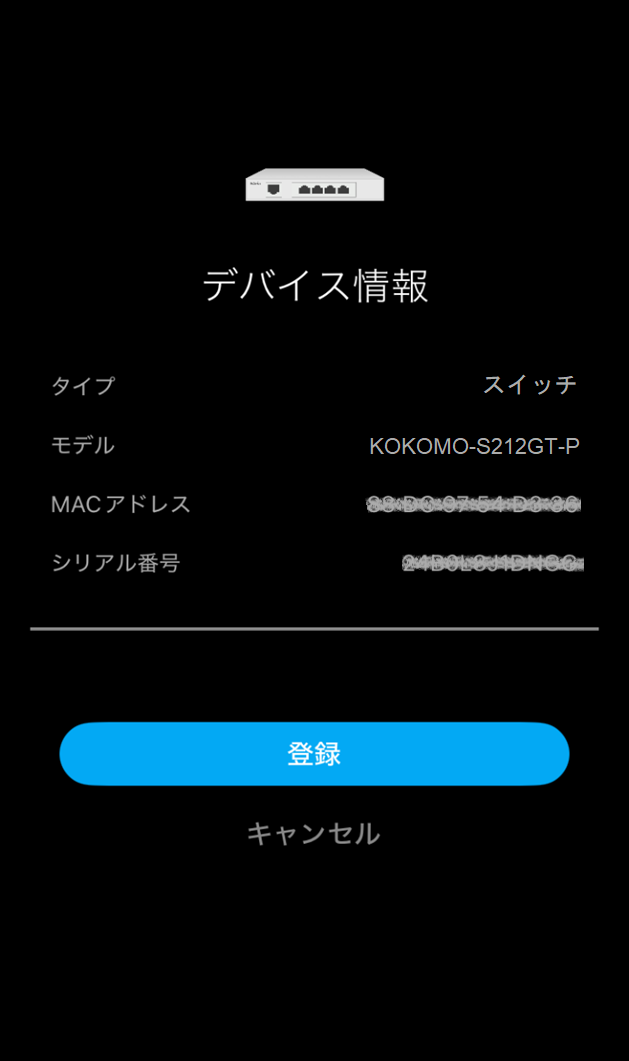
QRコードのスキャンに成功すると、アプリにデバイス情報が表示されます。「**登録**」をタップして登録を完了してください。
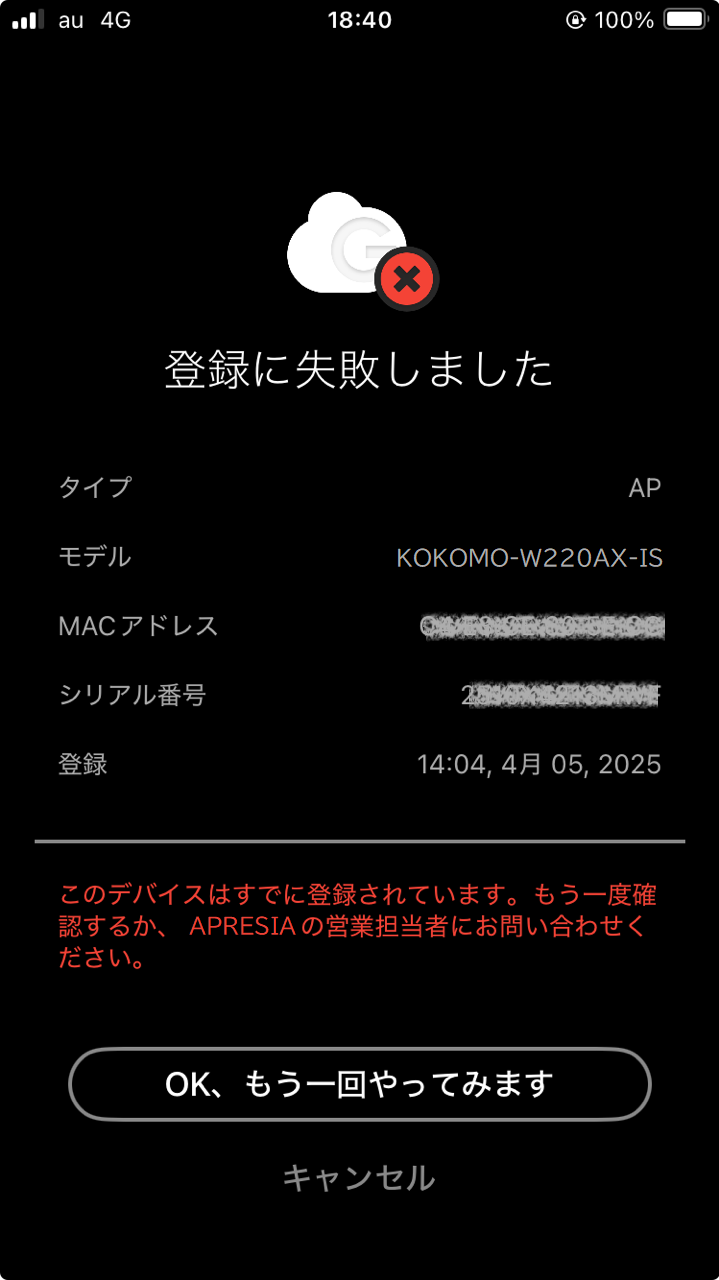
QRコードのスキャンに成功しなかった場合は、「**OK、もう一回やってみます**」をタップしてください。
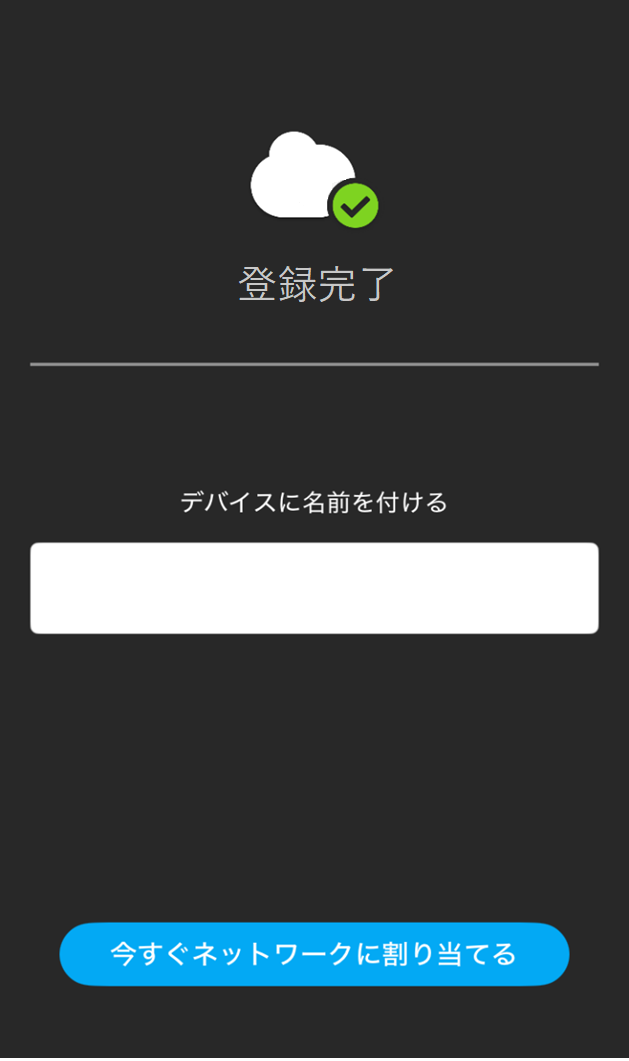
3. デバイスが正常に登録されると、デバイスに名前を付け、「**今すぐネットワークに割り当てる**」をタップします。
4. 割り当てるネットワークをタップし、「**適用する**」をタップします。\
間違ったネットワークを選択した場合は、「**変更**」をタップして正しいネットワークを選択してください。ネットワークが正しければ、「**次へ**」をタップします。
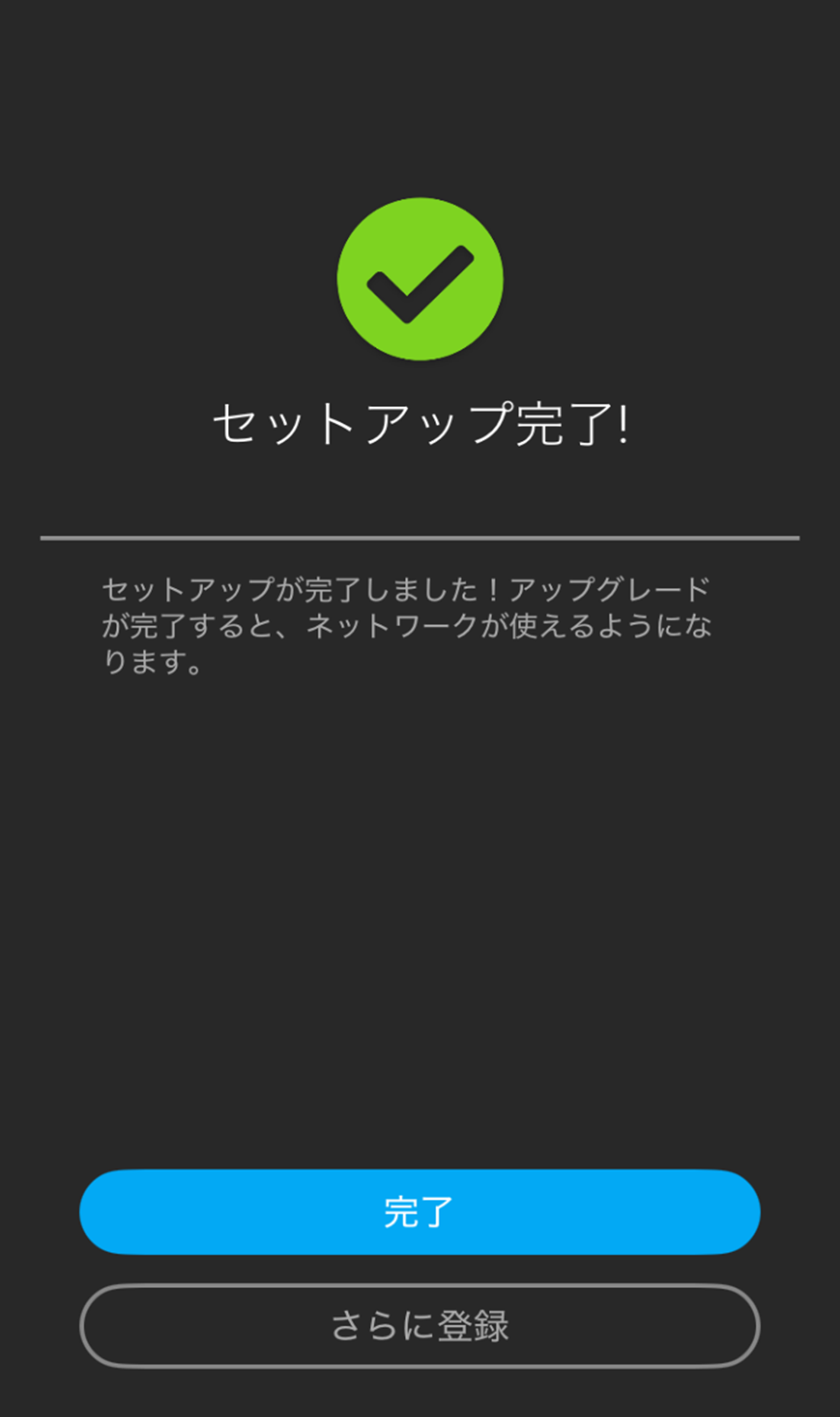
5. 「**完了**」をタップして全工程を終了するか、「**さらに登録**」をタップして他のデバイスを登録できます。
---
# Agent Instructions
This documentation is published with GitBook. GitBook is the documentation platform designed so that both humans and AI agents can read, navigate, and reason over technical content effectively. Learn more at gitbook.com.
## Querying This Documentation
If you need additional information that is not directly available in this page, you can query the documentation dynamically by asking a question.
Perform an HTTP GET request on the current page URL with the `ask` query parameter, and the optional `goal` query parameter:
```
GET https://docs.lan.kokomocloud.com/mobile-app.md?ask=&goal=
```
`ask` is the immediate question: it should be specific, self-contained, and written in natural language.
`goal` is optional and describes the broader end goal you are ultimately trying to accomplish on behalf of the user. GitBook uses it to tailor the answer towards what is most useful for that goal.
The response will contain a direct answer to the question and relevant excerpts and sources from the documentation.
Use this mechanism when the answer is not explicitly present in the current page, you need clarification or additional context, or you want to retrieve related documentation sections.
 」記号をタップします。