> For the complete documentation index, see [llms.txt](https://docs.lan.kokomocloud.com/llms.txt). Markdown versions of documentation pages are available by appending `.md` to page URLs; this page is available as [Markdown](https://docs.lan.kokomocloud.com/configuring-networks/configuring-access-points/configuring-ssids/captive-portal.md).
# キャプティブポータル
キャプティブポータルは、通常は専用に指定されたログインページを通じてユーザーが接続を認証するまで、ネットワークトラフィックをインターセプトすることができます。
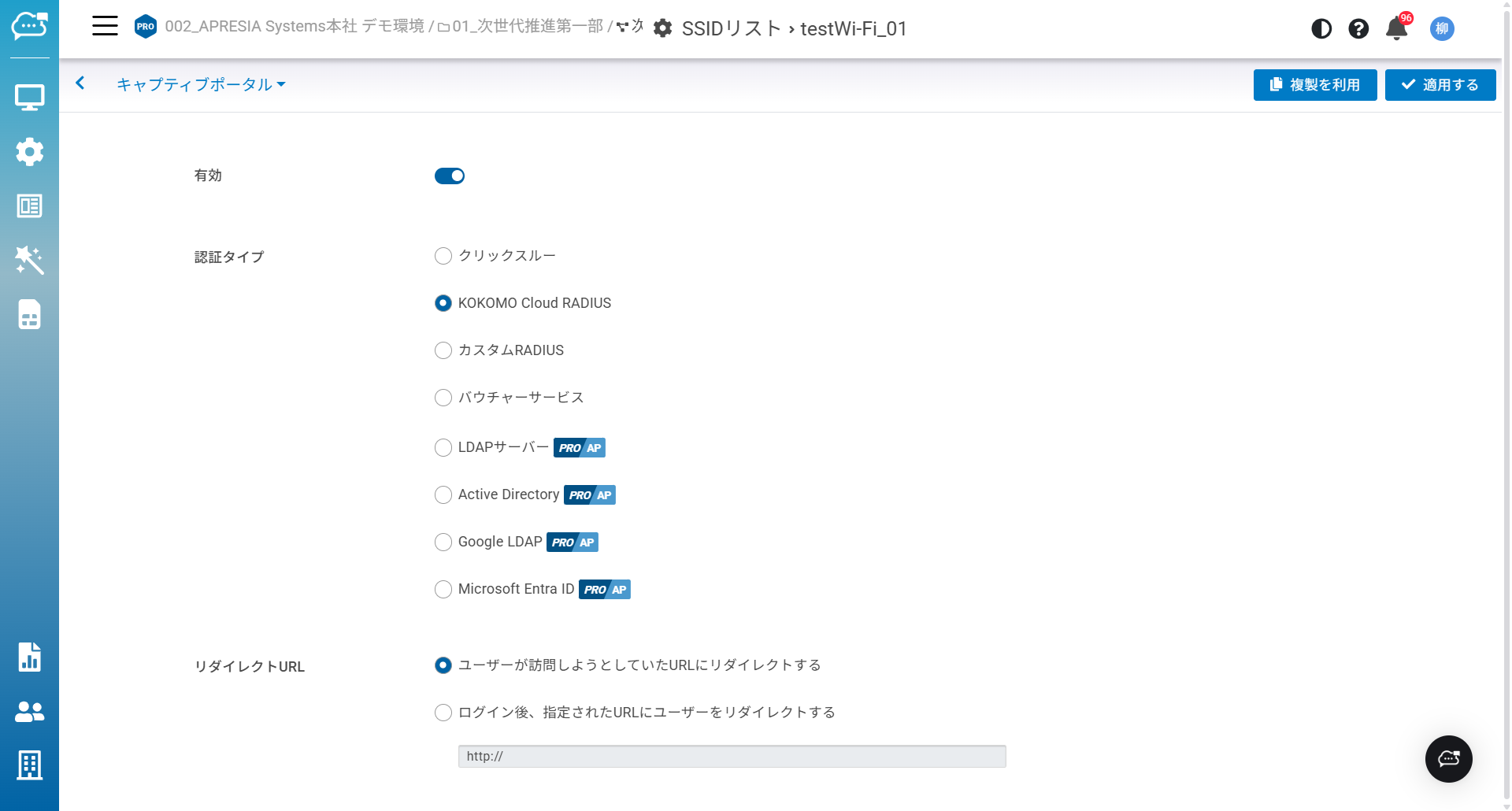
「**設定**」>「**アクセスポイント**」>「**SSID**」>「**キャプティブポータル**」をクリックしてこの画面にアクセスします。
## 認証タイプ
* **クリックスルー**:ユーザーはネットワークに接続が許可される前に、スプラッシュページを閲覧し、承認する必要があります。
* **KOKOMO Cloud RADIUS**:ユーザーはネットワークへのアクセスが許可される前に、ユーザー名とパスワードを入力する必要があります。ユーザー設定は「**設定**」>「**ユーザー**」>「**クラウドユーザー**」から編集できます。
* **カスタムRADIUS**:「**ホスト**」(アクセスポイントから到達可能なRADIUSサーバーのIPアドレス)、「**ポート**」(アクセス要求をリッスンするRADIUSサーバーのUDPポート、デフォルトでは1812)、「**Secret**」(RADIUSクライアント共有シークレット)を入力します。オプションとして、WPA2エンタープライズをRADIUS認証で使用しているSSIDで、「**アカウンティングサーバー**」を有効化できます。
* **バウチャーサービス**:フロントデスク管理者向けにゲスト用アクセスプランを編集できます。
* **LDAPサーバー**:外部でホストされるLDAPサーバーを利用した認証が可能です。
* **Active Directory**:Windows ADサーバーと統合し、指定されたドメイン、認証情報、アカウントのメールアドレスを迅速に識別して認証管理を行えます。
* **Google LDAP**:Google WorkspaceでGoogle LDAPを使用すると、アカウント管理のために特定のネームスペースやメールアドレスをユーザーに紐づけて識別できます。
* **Microsoft Entra ID**:Microsoft Entra IDと連携させることで、指定されたドメイン/認証情報やアカウントのメールアドレスを迅速に識別して認証管理を行えます。
{% hint style="danger" %}
「**バウチャーサービス**」、「**Microsoft Entra ID**」は未サポートです。
{% endhint %}
{% hint style="danger" %}
キャプティブポータルの「**カスタムRADIUS**」において「**CoA(認証情報更新)**」「**RADIUSによる帯域幅制限**」は未サポートです。
{% endhint %}
### キャプティブポータルの対応認証方式
キャプティブポータルの対応認証方式を示します(SSIDセキュリティタイプ「WPA2/3エンタープライズ」を選択している場合を除く)。
認証方式
MAC認証 (PAP)
MAC認証 (CHAP)
WEB認証 (PAP)
WEB認証 (CHAP)
KOKOMO Cloud RADIUS
✕
✕
✕
〇
カスタムRADIUS
〇
〇
〇
〇
LDAPサーバー
✕
✕
✕
〇
Active Directory
✕
✕
✕
〇
Google LDAP
✕
✕
✕
〇
{% hint style="warning" %}
SSIDのセキュリティタイプ設定で「**WPA2エンタープライズ**」または「**WPA3エンタープライズ**」を選択している場合、キャプティブポータルで対応している認証タイプは「**クリックスルー**」のみです。
{% endhint %}
## リダイレクトURL
ログイン成功後にユーザーをリダイレクトするURLを設定します。
**元のURLへリダイレクト**:このオプションを選択すると、認証処理中にクライアントからの最初のWebサイトをキャッシュし、ユーザーの認証成功後にそれを元の対象Webサーバーへ転送します。
**新しいURLへリダイレクト**:このオプションを選択すると、ユーザーの認証成功後、指定したURLへユーザーをリダイレクトします。
## 高度な設定
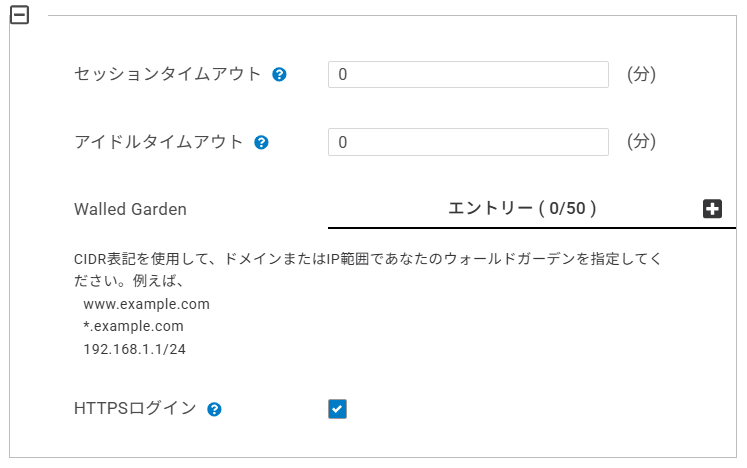
**セッションタイムアウト**:ユーザーが切断され、再度ログインが必要となるまでの時間制限を指定します。0を入力すると無制限になり、クライアントはログイン後に切断されません。
**アイドルタイムアウト**:アイドルクライアントについて、ユーザーが切断され、再度ログインが必要となるまで時間制限を指定します。0を入力することで無制限になり、クライアントはログイン後も切断されません。
**Walled Garden**:認証前にユーザーがアクセス可能なネットワーク先を定義できます。例えば、自社Webサイトなどです。
**HTTPSログイン**:このオプションにより、ユーザーはHTTPS経由でのログインが可能になります。有効化するとパスワードが暗号化され、他者がその情報を取得できなくなります。
---
# Agent Instructions
This documentation is published with GitBook. GitBook is the documentation platform designed so that both humans and AI agents can read, navigate, and reason over technical content effectively. Learn more at gitbook.com.
## Querying This Documentation
If you need additional information that is not directly available in this page, you can query the documentation dynamically by asking a question.
Perform an HTTP GET request on the current page URL with the `ask` query parameter, and the optional `goal` query parameter:
```
GET https://docs.lan.kokomocloud.com/configuring-networks/configuring-access-points/configuring-ssids/captive-portal.md?ask=&goal=
```
`ask` is the immediate question: it should be specific, self-contained, and written in natural language.
`goal` is optional and describes the broader end goal you are ultimately trying to accomplish on behalf of the user. GitBook uses it to tailor the answer towards what is most useful for that goal.
The response will contain a direct answer to the question and relevant excerpts and sources from the documentation.
Use this mechanism when the answer is not explicitly present in the current page, you need clarification or additional context, or you want to retrieve related documentation sections.