> For the complete documentation index, see [llms.txt](https://docs.lan.kokomocloud.com/llms.txt). Markdown versions of documentation pages are available by appending `.md` to page URLs; this page is available as [Markdown](https://docs.lan.kokomocloud.com/managing-devices/managing-switches/mirror.md).
# ミラーリング
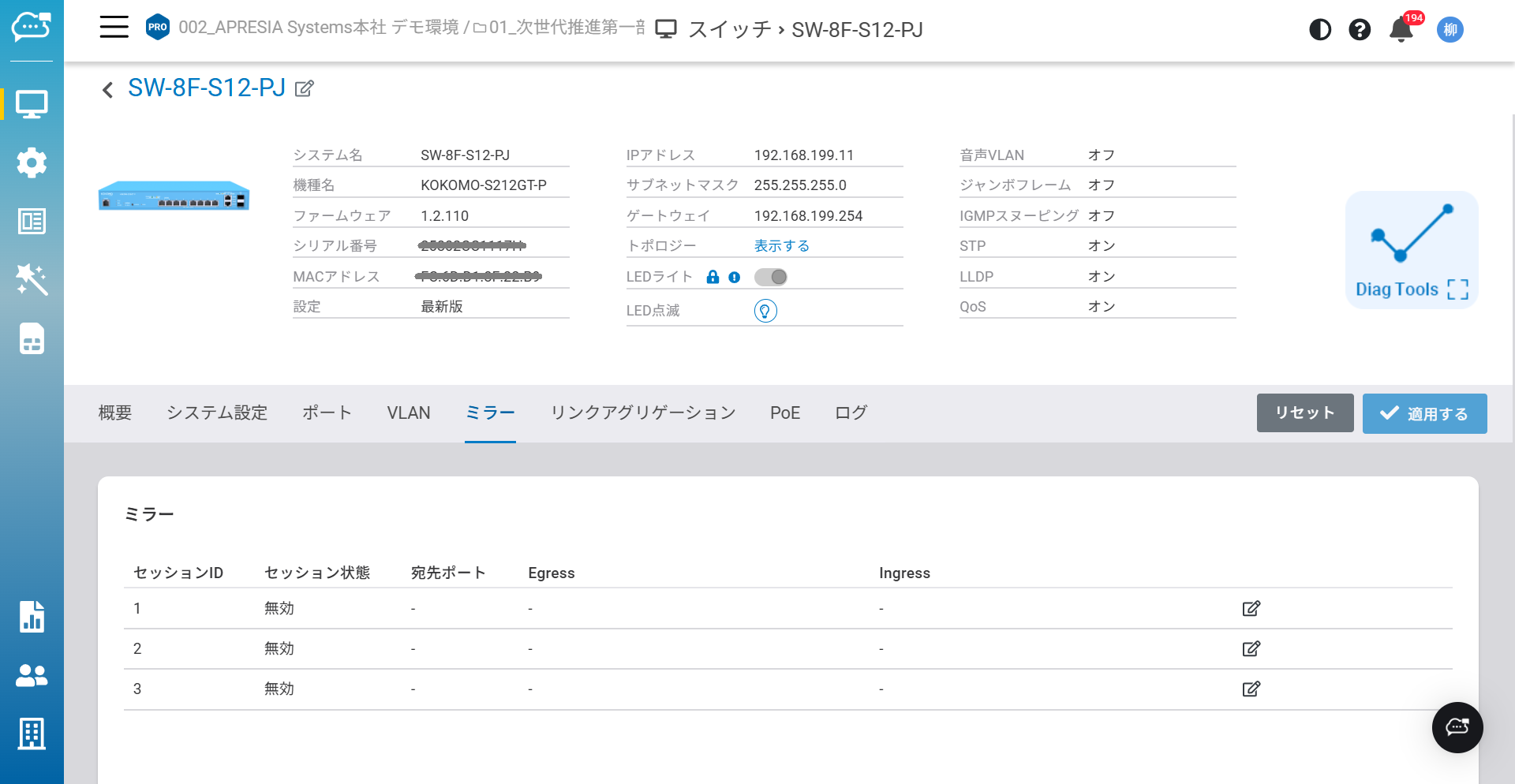
ポートミラーリングは、1つまたは複数のポートのパケットをミラーリング先ポートに複製する機能です。ミラーリング先ポートに監視用デバイスを接続することで、複製されたポートを通過するパケットの詳細を確認できます。ネットワークの監視やトラブルシューティングに有用です。この機能は「**管理**」>「**スイッチ**」>「**詳細情報**」>「**ミラー**」から利用できます。
以下はこの画面に表示されるラベルの説明です:
* **セッションID**:ミラーリングセッションを識別する番号です。スイッチは最大3つのミラーリングセッションをサポートします。
* **セッション状態**:ポートミラーリングの有効/無効を選択します。
* **宛先ポート**:すべてのミラーリングされたデータが送信されるポートです。
* **Egress**:送信データのみがミラーリングされることを示します。
* **Ingress**:受信データのみがミラーリングされることを示します。
## 設定手順
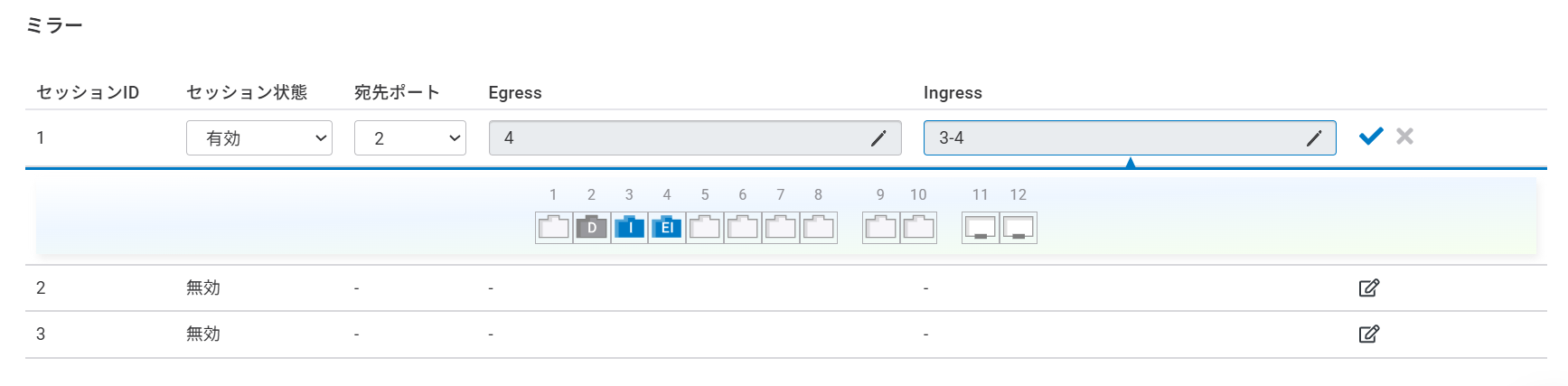
1. 右側の編集アイコンをクリックします。
2. 「**セッション状態**」を有効にします。
3. 「**宛先ポート**」を選択します。
4. 「**Egress**」と「**Ingress**」のポートを選択します。
5. 「**適用する**」をクリックします。
{% hint style="info" %}
該当ポートの送信データのみをミラーリングしたい場合は「Egress」のみを、受信データのみをミラーリングしたい場合は「Ingress」のみを選択してください。送受信データをミラーリングしたい場合は、「Egress」と「Ingress」両方を選択してください。
{% endhint %}
{% hint style="info" %}
ミラーリングされるデータは「宛先ポート」に送信されます。「Egress」ポートではないのでご注意ください。
{% endhint %}
## ポートの状態
設定可能なポートのタイプは4つあります。
宛先ポートに割り当てられたポート\
送信データのみミラーリングされるポート\
受信データのみミラーリングされるポート\
両方向のデータが宛先ポートにミラーリングされるポート \
---
# Agent Instructions
This documentation is published with GitBook. GitBook is the documentation platform designed so that both humans and AI agents can read, navigate, and reason over technical content effectively. Learn more at gitbook.com.
## Querying This Documentation
If you need additional information that is not directly available in this page, you can query the documentation dynamically by asking a question.
Perform an HTTP GET request on the current page URL with the `ask` query parameter, and the optional `goal` query parameter:
```
GET https://docs.lan.kokomocloud.com/managing-devices/managing-switches/mirror.md?ask=&goal=
```
`ask` is the immediate question: it should be specific, self-contained, and written in natural language.
`goal` is optional and describes the broader end goal you are ultimately trying to accomplish on behalf of the user. GitBook uses it to tailor the answer towards what is most useful for that goal.
The response will contain a direct answer to the question and relevant excerpts and sources from the documentation.
Use this mechanism when the answer is not explicitly present in the current page, you need clarification or additional context, or you want to retrieve related documentation sections.
 宛先ポートに割り当てられたポート\
 送信データのみミラーリングされるポート\
 受信データのみミラーリングされるポート\
 両方向のデータが宛先ポートにミラーリングされるポート \
---
# Agent Instructions
This documentation is published with GitBook. GitBook is the documentation platform designed so that both humans and AI agents can read, navigate, and reason over technical content effectively. Learn more at gitbook.com.
## Querying This Documentation
If you need additional information that is not directly available in this page, you can query the documentation dynamically by asking a question.
Perform an HTTP GET request on the current page URL with the `ask` query parameter, and the optional `goal` query parameter:
```
GET https://docs.lan.kokomocloud.com/managing-devices/managing-switches/mirror.md?ask=
両方向のデータが宛先ポートにミラーリングされるポート \
---
# Agent Instructions
This documentation is published with GitBook. GitBook is the documentation platform designed so that both humans and AI agents can read, navigate, and reason over technical content effectively. Learn more at gitbook.com.
## Querying This Documentation
If you need additional information that is not directly available in this page, you can query the documentation dynamically by asking a question.
Perform an HTTP GET request on the current page URL with the `ask` query parameter, and the optional `goal` query parameter:
```
GET https://docs.lan.kokomocloud.com/managing-devices/managing-switches/mirror.md?ask=