> For the complete documentation index, see [llms.txt](https://docs.lan.kokomocloud.com/llms.txt). Markdown versions of documentation pages are available by appending `.md` to page URLs; this page is available as [Markdown](https://docs.lan.kokomocloud.com/managing-devices/managing-clients/client-timeline.md).

# クライアントタイムライン

クライアントタイムラインは、特定の無線クライアントの活動を集約・分析し、直感的な履歴ビューを提供する機能です。これにより、クライアントのアクセスポイントへの接続、認証、ローミングの状況を簡単に把握できます。無線ネットワークのデバッグや調査が必要な場合に非常に有用です。この機能は「**管理**」＞「**クライアント**」＞「**クライアント名**」で利用できます。

## クライアント状態 <a href="#client-states" id="client-states"></a>

KOKOMO CloudのAIシステムは、クライアントの活動を5つの状態に分類します：

&#x20;    <img src="/files/-M4DjLMvTkBtvkfSFE65" alt="" data-size="original">            クライアントがアクセスポイントに接続中\
&#x20;<img src="/files/-M4DlzzNFYTESp8gxUEt" alt="" data-size="original">           クライアントがローミングして別のアクセスポイントに接続中\
&#x20;  <img src="/files/-M4DmUdKCOzVC1D9NKtQ" alt="" data-size="original">           クライアントが同一アクセスポイントで異なる無線またはSSIDに接続を変更\
&#x20;   <img src="/files/-M4DnV7ZtWld7njd5Xrb" alt="" data-size="original">            クライアントがSSID認証に失敗\
&#x20;   <img src="/files/-M4DowmauNhO_LXntyeo" alt="" data-size="original">             クライアントがブロックリストに該当したため拒否

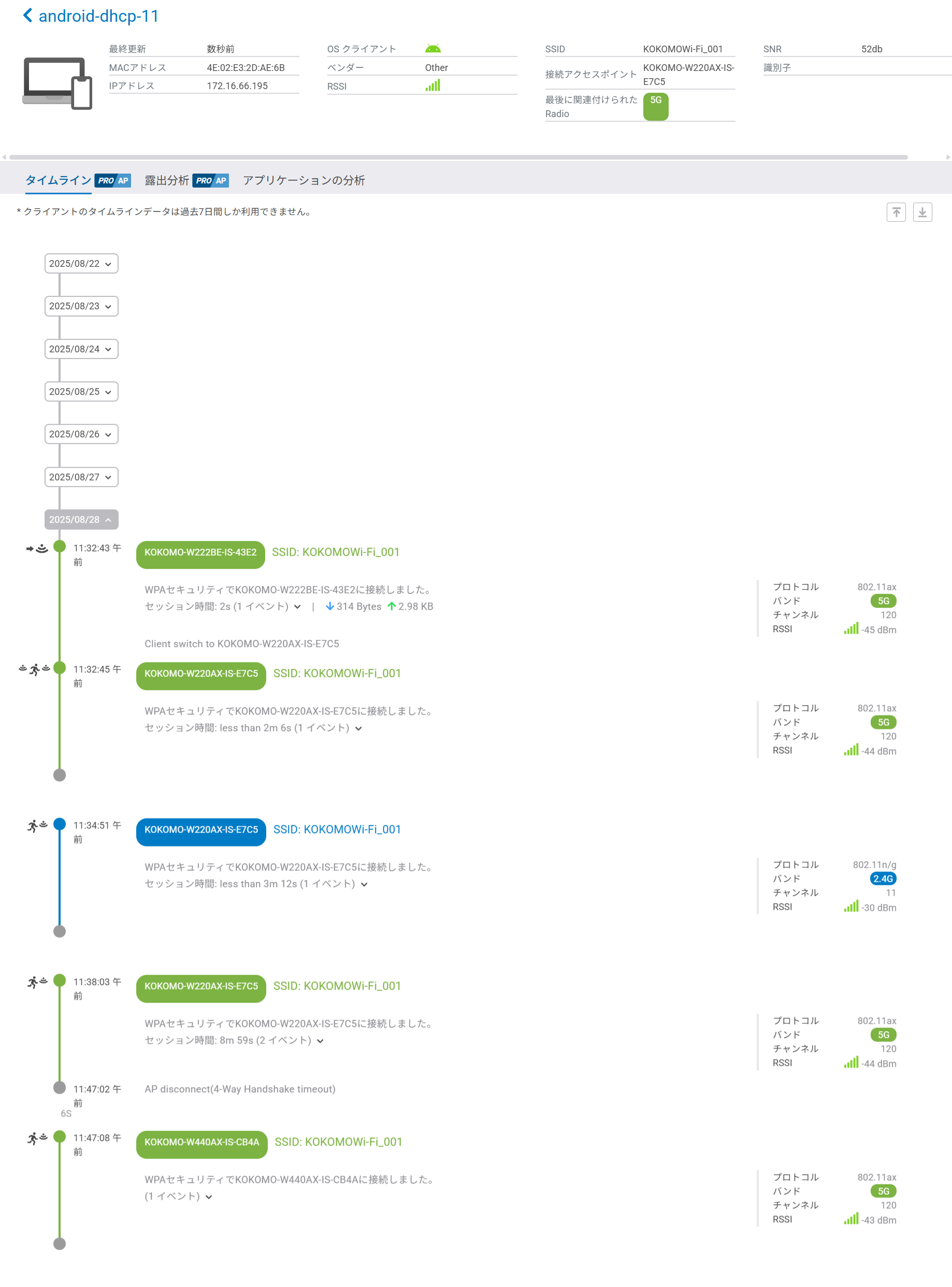
これらの状態はタイムラインの左側に表示され、クライアントがアクセスポイント間でどのように状態遷移したかを確認できます。
<figure><img src="/files/Zy14tKkZgnEK8QZ3unny" alt=""><figcaption></figcaption></figure>

## 無線色分けルール <a href="#radio-color-conventions" id="radio-color-conventions"></a>

クライアントタイムラインの描画と内容は以下の色分けルールに従います：

* 濃い緑：6Gセッションを表します。<img src="/files/b0RdZAPaK2OP31P61e78" alt="" data-size="line">
* 淡い緑：5Gセッションを表します。<img src="/files/wqHuYsODvAnqQezRy3iw" alt="" data-size="line">
* 青：2.4Gセッションを表します。　<img src="/files/Jdrlh7S9YepVHGnBuG34" alt="" data-size="line">

{% hint style="info" %}
各セッションの右側には、セッション開始時点で検出されたクライアントのチャネル、帯域、プロトコル、信号強度が表示されます。
{% endhint %}

{% hint style="info" %}
認証失敗、もしくはアクセス制御によってアクセス拒否された場合には赤色で表示されます。
{% endhint %}

## 遷移詳細 <a href="#transition-details" id="transition-details"></a>

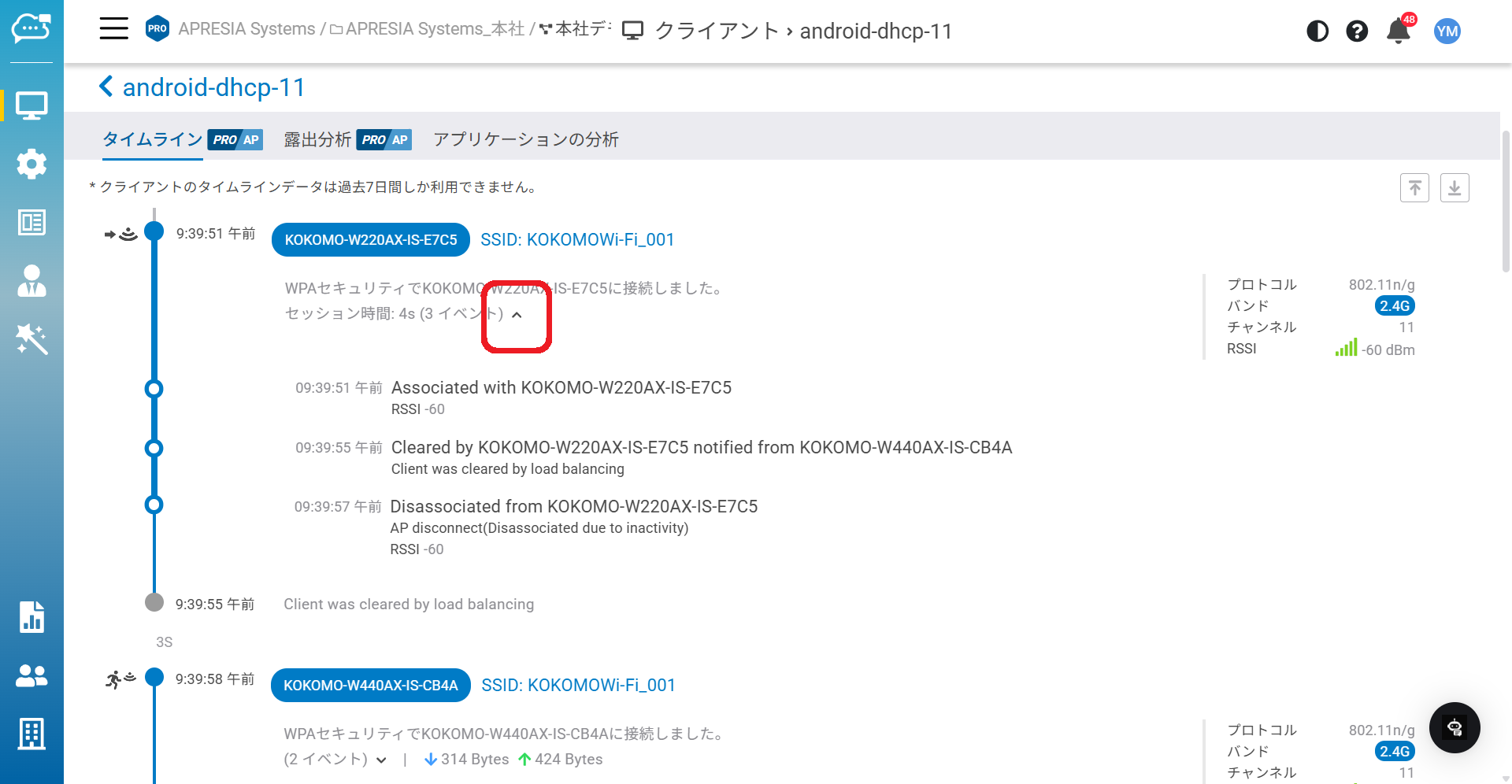
無線クライアントとアクセスポイントの間の通信は非常に複雑になる場合があります。同じアクセスポイントとの通信でも、異なるWi-Fiチップや無線ドライバを持つクライアントごとに挙動が異なることがあり得ます。クライアントタイムラインのインテリジェントエンジンは通信パケットを効果的に解析し、分かりやすく、人間が読める形式の遷移詳細をユーザーに提供できます。

接続セッション内のイベントサマリーをクリックすると、遷移詳細のシーケンスを展開できます。
<figure><img src="/files/GFHwHOsYPZ1ZflooLC15" alt=""><figcaption></figcaption></figure>

以下の表は、クライアントが各接続セッションから離脱する際のパターンを示します。&#x20;

<table data-header-hidden><thead><tr><th width="340">離脱理由</th><th>説明</th></tr></thead><tbody><tr><td>離脱理由</td><td>説明</td></tr><tr><td><strong>Incorrect password</strong></td><td>クライアントがWPAのパスワードを誤って入力したか、EAPの認証情報を誤って入力した。</td></tr><tr><td><strong>Client switch to {device_name}/{radio}</strong></td><td>RSSI信号が十分でない場合、クライアントはAPから離脱せず、通常の認証手順で新しいAPに直接接続する。</td></tr><tr><td><strong>Roam out to {device_name}</strong></td><td>RSSI信号が十分でない場合、クライアントは元のAPから切断し、802.11r高速ローミングプロトコルによって新しいAPに接続する。</td></tr><tr><td><strong>Steer to {radio}</strong></td><td>バンドステアリングプロトコルにより、クライアントが AP から切断された。802.11v トリガーを受信し、それに応じて提案されたバンドに接続した。</td></tr><tr><td><strong>Disconnected by {device_name}</strong></td><td>RSSI 信号の不良（高速ハンドオーバー）のため、クライアントが AP によって切断された。</td></tr><tr><td><strong>AP disconnect</strong></td><td>クライアントが原因不明の理由でAPによって切断された。</td></tr><tr><td><strong>Kicked by Cloud</strong></td><td>クライアントはクラウド管理者によって強制的に切断された。</td></tr><tr><td><strong>Denied by ACL</strong></td><td>クライアントがアクセス制御のブロックリストに載っていたため、APが接続を拒否した。</td></tr><tr><td><strong>Exceed client limit</strong></td><td>クライアント数が2.4G／5G／6Gクライアントの上限を超えたため、接続が拒否された。</td></tr><tr><td><strong>Client inactive</strong></td><td>クライアントが省電力モードになっているか、APから遠く離れているために非アクティブだった。</td></tr><tr><td><strong>Client disconnect</strong></td><td>ユーザーがWi-Fiを無効にしたか、他のAPへの接続を選択したため、クライアントが切断された。</td></tr><tr><td><strong>Disconnected due to SSID configuration change</strong></td><td>クライアントはSSIDの設定変更により接続が切断された（一部の設定変更は、NICを再起動した後でしか有効にならない。NICがダウン状態になると、すべての接続が切断される）</td></tr></tbody></table>


---

# Agent Instructions
This documentation is published with GitBook. GitBook is the documentation platform designed so that both humans and AI agents can read, navigate, and reason over technical content effectively. Learn more at gitbook.com.

## Querying This Documentation
If you need additional information that is not directly available in this page, you can query the documentation dynamically by asking a question.

Perform an HTTP GET request on the current page URL with the `ask` query parameter:

```
GET https://docs.lan.kokomocloud.com/managing-devices/managing-clients/client-timeline.md?ask=<question>
```

The question should be specific, self-contained, and written in natural language.
The response will contain a direct answer to the question and relevant excerpts and sources from the documentation.

Use this mechanism when the answer is not explicitly present in the current page, you need clarification or additional context, or you want to retrieve related documentation sections.