> For the complete documentation index, see [llms.txt](https://docs.lan.kokomocloud.com/llms.txt). Markdown versions of documentation pages are available by appending `.md` to page URLs; this page is available as [Markdown](https://docs.lan.kokomocloud.com/standalone/analytics/diag-tools.md).
# 診断ツール
オンデマンドでネットワークおよびインターネット接続状況のチェックを実行し、接続の問題をトラブルシューティングします。
診断ツールを使用すると、アクセスポイントから直接接続チェックを実行できるため、ログを取得したり、別のテストデバイスを接続したりすることなく、ネットワークとインターネットに接続できることを確認できます。
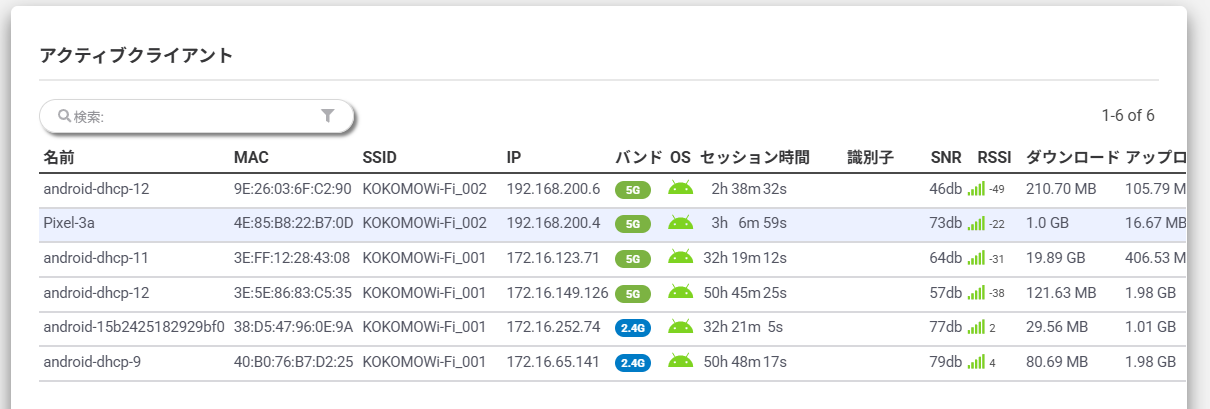
デフォルトのビューでは、これらのチェックはネットワークアクティビティパネルとインターネット接続性パネルにグループ化されています。左側のパネルはネットワークアクティビティのチェック、右側のパネルはインターネット接続性のチェック(ゲートウェイ、DNS、インターネットへの接続など)を表示します。チェックに必要な詳細情報は、実行時にパネルに直接入力し、チェックを開始します。チェックが完了すると、結果がパネルに表示されます。現在接続されているユーザーを確認するには、「**アクティブクライアント**」に切り替えてください。
画面左右の「<」「>」をクリックすることで画面を切り替えることができます。
{% hint style="info" %}
アクティビティ、インターネット接続性機能ではリアルタイムデータを取得するためにWebSocket Secure通信(ポート443)を使用しています。プロキシやファイアウォールでTLS/SSLインスペクションを有効にしている場合、WebSocket Secure通信が確立できず、診断ツールとして利用できなくなる場合があります。
{% endhint %}
### ネットワークアクティビティ
### アクティビティ
オンデマンドでネットワークアクティビティチェックを実行します。チェックに必要な情報を入力し、開始すると、パネルに結果が表示されます。
現在の情報を示します。「非Wi-Fi」チャネル利用率(%)も表示することで、総チャネル利用率のうちどの程度が非Wi-Fi由来であるかを把握できます。これにより、ユーザーは干渉が他のアクセスポイントによるものか、あるいはチャネル環境が混雑していてホワイトノイズが多いのかを判断できます。
### **インターネット接続**
必要に応じてインターネット接続状況のチェック(ゲートウェイ、DNS、インターネットへの接続確認など)を実行します。
* **速度テスト:**(アクセスポイントが検出した)「**テストサーバー**」のリストから選択して実行できます。そのため、ユーザーに通信速度低下のトラブルが発生した場合、管理者はアクセスポイントのアップリンク速度の低下によるものか、クライアントとアクセスポイント間のWi-Fi環境の問題によるものかを確認できます。
* **Ping**:デフォルトで3つのサーバーが指定されており、レイテンシの変化を確認できます。ユーザーが独自のサーバーを指定することも可能です。
### **アクティブクライアント**
アクティブクライアント機能では、現在アクセスポイントに接続されているワイヤレスデバイスが表示されるため、ネットワーク上に誰がいるかを確認したり、予期しない接続を特定したりできます。多数のクライアントが接続されている場合は、検索バーを使用してリストをすばやく絞り込むことができます。
---
# Agent Instructions
This documentation is published with GitBook. GitBook is the documentation platform designed so that both humans and AI agents can read, navigate, and reason over technical content effectively. Learn more at gitbook.com.
## Querying This Documentation
If you need additional information that is not directly available in this page, you can query the documentation by asking a question.
Perform an HTTP GET request on the following URL with the `ask` and `goal` query parameters:
```
GET https://docs.lan.kokomocloud.com/standalone/analytics/diag-tools.md?ask=&goal=
```
`ask` is the immediate question: it should be specific, self-contained, and written in natural language.
`goal` is what the user is ultimately trying to achieve, the reason they need the answer. Sharing it helps GitBook give you a better, more relevant answer. A goal is most helpful when it describes the outcome the user wants rather than restating the question. For example, with `ask=how do I create an API token`, a goal like `automate deployments from our CI pipeline` lets GitBook tailor the answer to that use case.
The response will contain a direct answer to the question and relevant excerpts and sources from the documentation.
Use this mechanism when the answer is not explicitly present in the current page, you need clarification or additional context, or you want to retrieve related documentation sections.