> For the complete documentation index, see [llms.txt](https://docs.lan.kokomocloud.com/llms.txt). Markdown versions of documentation pages are available by appending `.md` to page URLs; this page is available as [Markdown](https://docs.lan.kokomocloud.com/configuring-networks/general-settings/network.md).
# ネットワーク
## ネットワークの編集
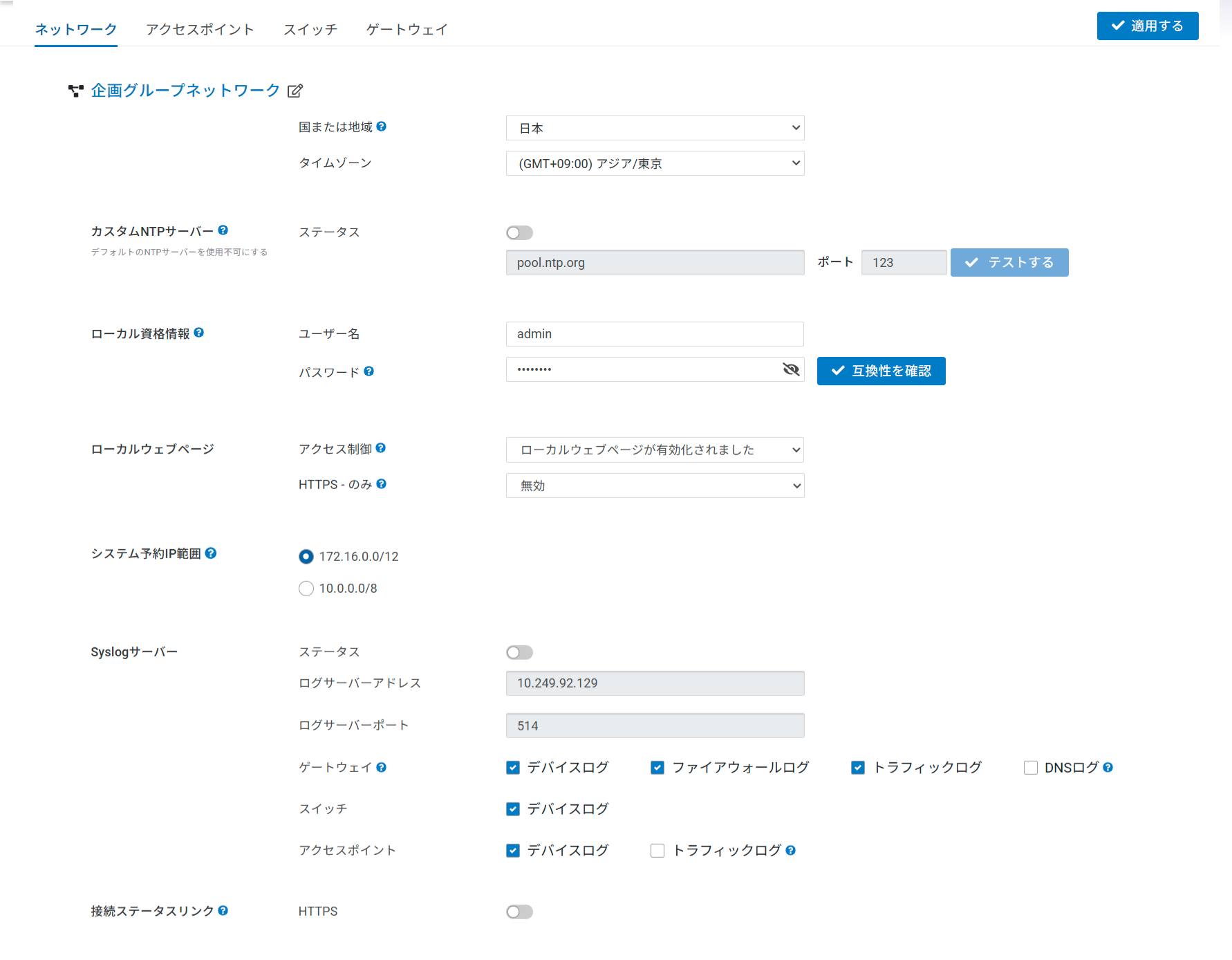
「**ネットワーク名**」、「**国**」、「**タイムゾーン**」は必要に応じて編集できます。以下の手順でネットワークを編集してください。
1. 「**編集**」ボタンをクリックしてネットワーク名を変更します。
2. 国とタイムゾーンを選択後、「**適用する**」をクリックします。
## カスタムNTPサーバー
デフォルトのNTPサーバー(pool.ntp.org)ではなく、お客様環境のNTPサーバーを指定することが可能です。「**ステータス**」を有効にし、NTPサーバーのアドレス(FQDN or IPアドレス)を登録してください。
## ローカル資格情報
この機能では、デバイスのローカルGUIのログインアカウントを設定できます。設定はネットワーク内のすべてのアクセスポイント、スイッチ、ゲートウェイに適用されます。
{% hint style="info" %}
パスワードは8~16文字の英数字および記号 \~!/,;-=\_<>{} が使用可能です。
{% endhint %}
{% hint style="warning" %}
アクセスポイントおよびゲートウェイはファームウェアバージョンによって最大文字数が12文字に制限されます。パスワード長が13文字以上に対応しているのは以下の通りです。
* アクセスポイント:1.8.118以上
* ゲートウェイ:1.2.110以上
{% endhint %}
## ローカルウェブページ
デバイスのWebサーバー(ローカルウェブアクセス)でHTTPS-onlyのアクセスを強制する設定が可能です。これによりLSP(ローカルステータスページ)やローカルGUIなどのコンポーネントも含め、デバイスのWebサーバーがHTTP要求を確実にHTTPSへリダイレクトします。
アクセス制御により、ネットワーク内のデバイスでLSPやローカルGUIの有効/無効を切り替えられます。
## システム予約IP範囲
NAT(アクセスポイントのDHCP)とキャプティブポータルを使用する場合、アクセスポイントはデフォルトで一定のIPアドレス範囲を利用します。ユーザーが意図せずローカルネットワークをこの範囲と競合させる設定をしてしまうと、問題が発生します。ユーザーは、ローカルLANのIPアドレス範囲を変更できない場合、システム予約範囲を変更できます。
「**設定**」>「**アクセスポイント**」>「**SSID**」>「**基本設定**」>「**クライアントIPアドレッシング**」(NAT/ブリッジ)で、現在システムとして予約しているIPアドレス範囲が確認できます(以下の例では 172.16.0.0/12 が予約IPアドレス範囲です)。
システム予約IPアドレス範囲を変更するには「**変更する**」をクリックしてください。ネットワーク全体設定画面にリダイレクトします。(「**設定**」>「**一般設定**」>「**アクセスポイント**」>「**システム予約IP範囲**」でも同じ設定画面が表示されます)
システム予約IPアドレス範囲として設定できるのは以下の2パターンです。どちらかを選択して「**適用する**」をクリックします。
* 172.16.0.0/12
* 10.0.0.0/8
## Syslogサーバー
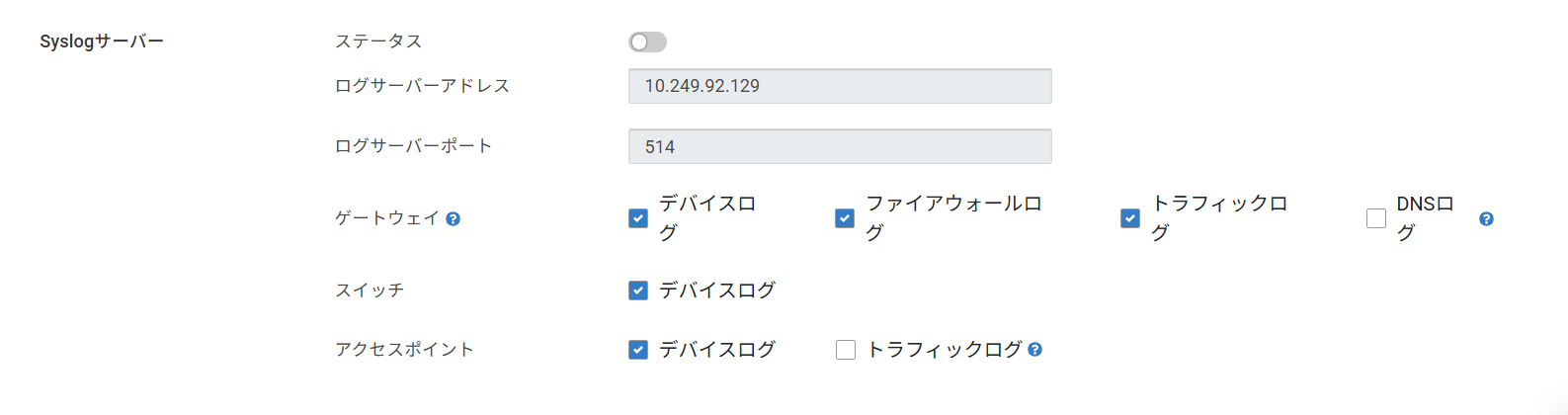
Syslogサーバーは、KOKOMO Cloud上のデバイスから外部ログサーバーにsyslogイベントをリモートで記録できます。
* **ステータス**:有効にすると、リモートシステムログの機能が利用できます。
* **ログサーバーアドレス**:syslogサーバーのIPアドレスまたはホスト名を指定します。
* **ログサーバーポート**:syslogサーバーのポートを指定します。デフォルトのポートは514です。
* **ゲートウェイ**:デバイスログ、ファイアウォールログ、トラフィックログ、DNSログから選択します。
* **スイッチ**:デバイスログのみです。
* **アクセスポイント**:デバイスログ、トラフィックログから選択します。トラフィックログでは、無線クライアント情報をリモートsyslogサーバーに送信します。これを有効にするとアクセスポイントの性能が著しく低下するので注意が必要です。
## 接続ステータスリンク(未サポート)
デフォルトでは、デバイスはリンクステータスの監視のためにクラウドへの接続を確立するためにHTTPを使用します。ファイアウォールがHTTPトラフィックを許可しない場合は、このオプションを有効にしてHTTPSを使用してください。
---
# Agent Instructions
This documentation is published with GitBook. GitBook is the documentation platform designed so that both humans and AI agents can read, navigate, and reason over technical content effectively. Learn more at gitbook.com.
## Querying This Documentation
If you need additional information that is not directly available in this page, you can query the documentation by asking a question.
Perform an HTTP GET request on the following URL with the `ask` and `goal` query parameters:
```
GET https://docs.lan.kokomocloud.com/configuring-networks/general-settings/network.md?ask=&goal=
```
`ask` is the immediate question: it should be specific, self-contained, and written in natural language.
`goal` is what the user is ultimately trying to achieve, the reason they need the answer. Sharing it helps GitBook give you a better, more relevant answer. A goal is most helpful when it describes the outcome the user wants rather than restating the question. For example, with `ask=how do I create an API token`, a goal like `automate deployments from our CI pipeline` lets GitBook tailor the answer to that use case.
The response will contain a direct answer to the question and relevant excerpts and sources from the documentation.
Use this mechanism when the answer is not explicitly present in the current page, you need clarification or additional context, or you want to retrieve related documentation sections.